Invoices and purchase orders
Define the fields and line-item columns to capture, then map the extracted table to the receiving system.
AppMan OCR+
Extract fields and tables from invoices, purchase orders and identity documents. Review the data and mask sensitive details before handoff.
Choose fields for the task. A purchase order supplies quantities for each item, while an invoice supplies an amount to pay.
| Source document | Fields to extract | How teams use the data |
|---|---|---|
| Purchase order | Order number, item descriptions, quantities and line prices | Purchasing checks quantities before posting order lines to the ERP. |
| Tax invoice and invoice | Supplier, document number and total. Tax invoices also provide tax ID and VAT. | Accounts payable reconciles the document total with the payment entry. |
| ID card and passport | Holder name and the document number for the ID type | Onboarding staff populate the application and check it against the original. |
Other supported document types include household registrations, vehicle registrations, bankbooks and bank slips. Sample files establish the layouts and fields for integration.
Human verification
Extract agreed fields and tables from Thai and English documents, such as an invoice subtotal and total.
In the QC workspace, reviewers compare extracted values with the original, correct discrepancies and hand verified fields to the receiving system.
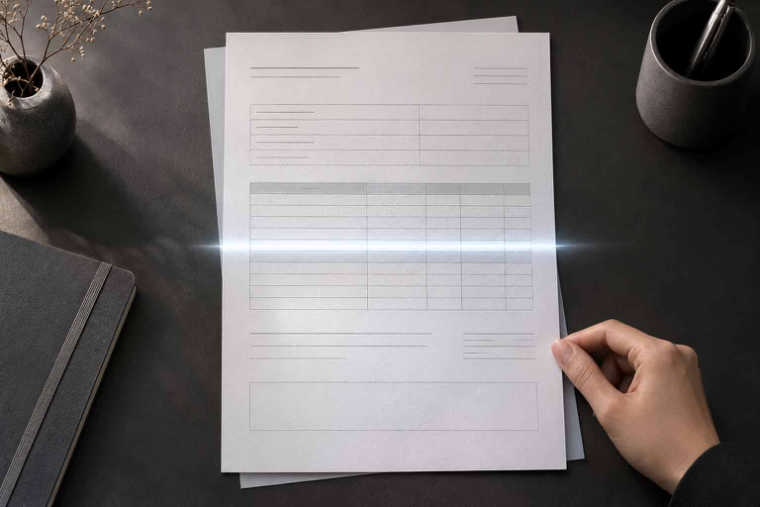
Define the fields and line-item columns to capture, then map the extracted table to the receiving system.
Identify the fields needed for the application and mask sensitive areas on the document before sharing it with another team.
A supplier sends a purchase order and a tax invoice together. Purchasing needs order quantities. Accounts payable needs VAT and the invoice total.
OCR+ identifies supported document types in the PDF and extracts the fields relevant to each part.
Order lines from successive pages form one table for checking descriptions, quantities and prices. The tax invoice yields its tax ID, VAT and total.
Reviewers check the extracted fields against the source before export. The same document pack supplies order lines to purchasing and invoice totals to accounts payable.
Rabbit Care sends extracted data directly to its back-office system. The team reported less manual entry and faster policy delivery.
AppMan holds Thai petty patent No. 22363 for its AI-based optical character recognition system.
A scan produces an image. OCR reads the characters in that image and turns them into text or fields, such as an invoice number and total, that a team can search, check or enter into another system.
Yes. Supported examples include Thai ID cards, passports, purchase orders and invoices. Sample documents help the team identify the layouts and fields required.
Yes, for supported layouts. OCR+ joins line items into one table so purchasing can check descriptions, quantities and prices against the original order.
Bring sample documents and the ERP field list, such as document number, item code and total. Agree on field mapping, review points and the output format with the integration team.
AI Bank Statement Analysis
Give credit reviewers a monthly view of inflows, outflows and net cash flow from submitted statements. Review the figures in Excel or pass the data to another system through an API.
When a lender receives several months of statements, the first step is to extract transactions into a form the reviewer can check.
In the sample above, March has ฿81,400 in inflows and ฿88,500 in outflows. The ฿7,100 difference gives the reviewer a specific month to examine.
Supported templates include image-based statements and text-based PDFs. Test with a sample from the bank and channel your customers actually use.
Supported PDFs can be processed with the opening password. The organisation defines how applicants provide the file and password.
Yes. Review monthly inflows and outflows in Excel and reconcile entries against the original statement before handing the results to the credit reviewer.